


 United Kingdom

A step-by-step guide to generating your Contrado API key, installing the plugin, and syncing your product catalog to WooCommerce.
Before you can connect WooCommerce to Contrado, you need to create an API key from your Contrado account.
1. Log in to your Contrado account.
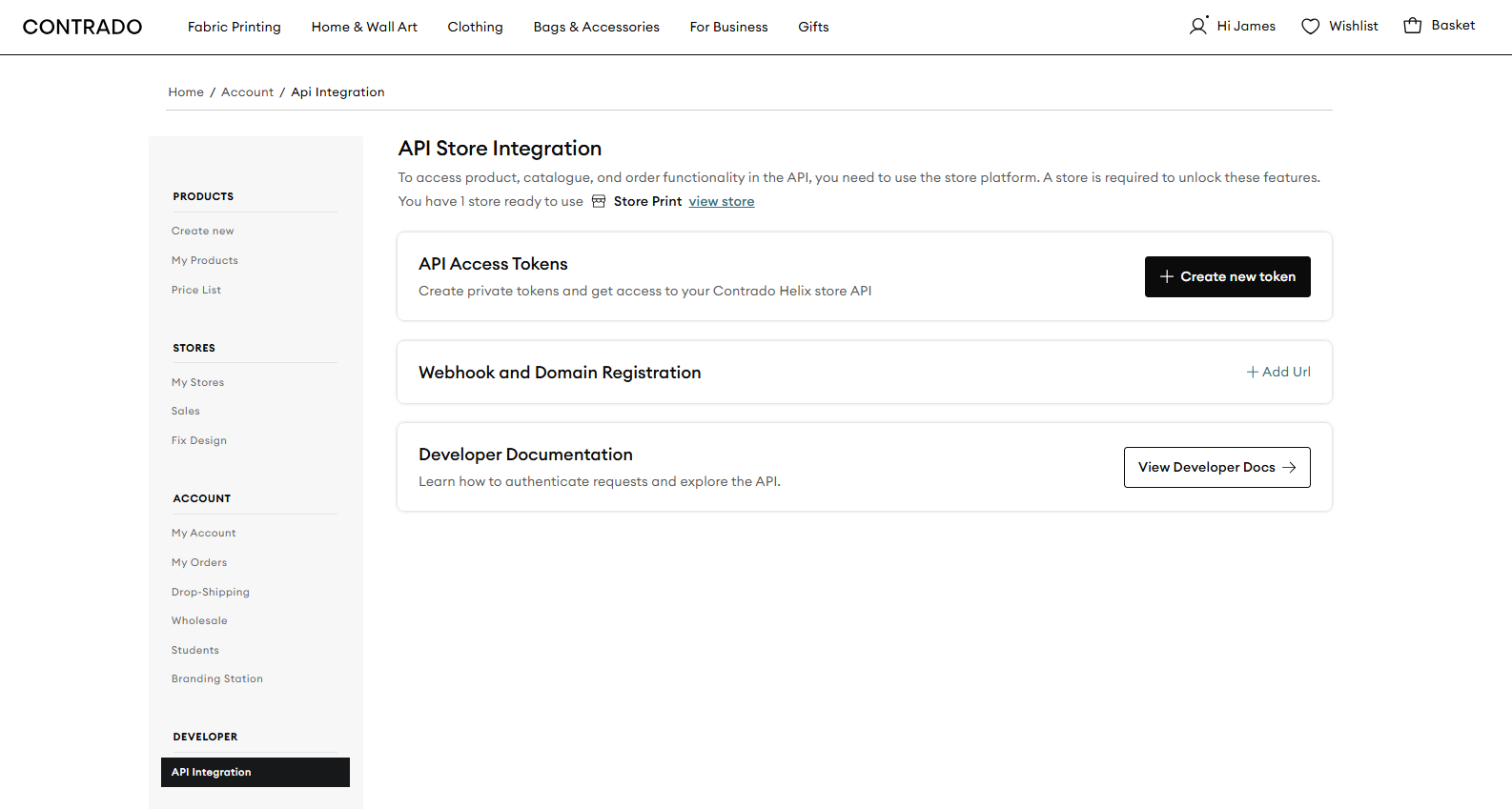
2. Go to My Account > API Integration.
3. Select the Agree to Terms & Conditions checkbox.
4. Click Enable Developer Access.
5. Verify your email address, if it isn't verified already.
6. Create a store if you haven't created one yet.
7. Click Create New Token to generate your Contrado account API token.
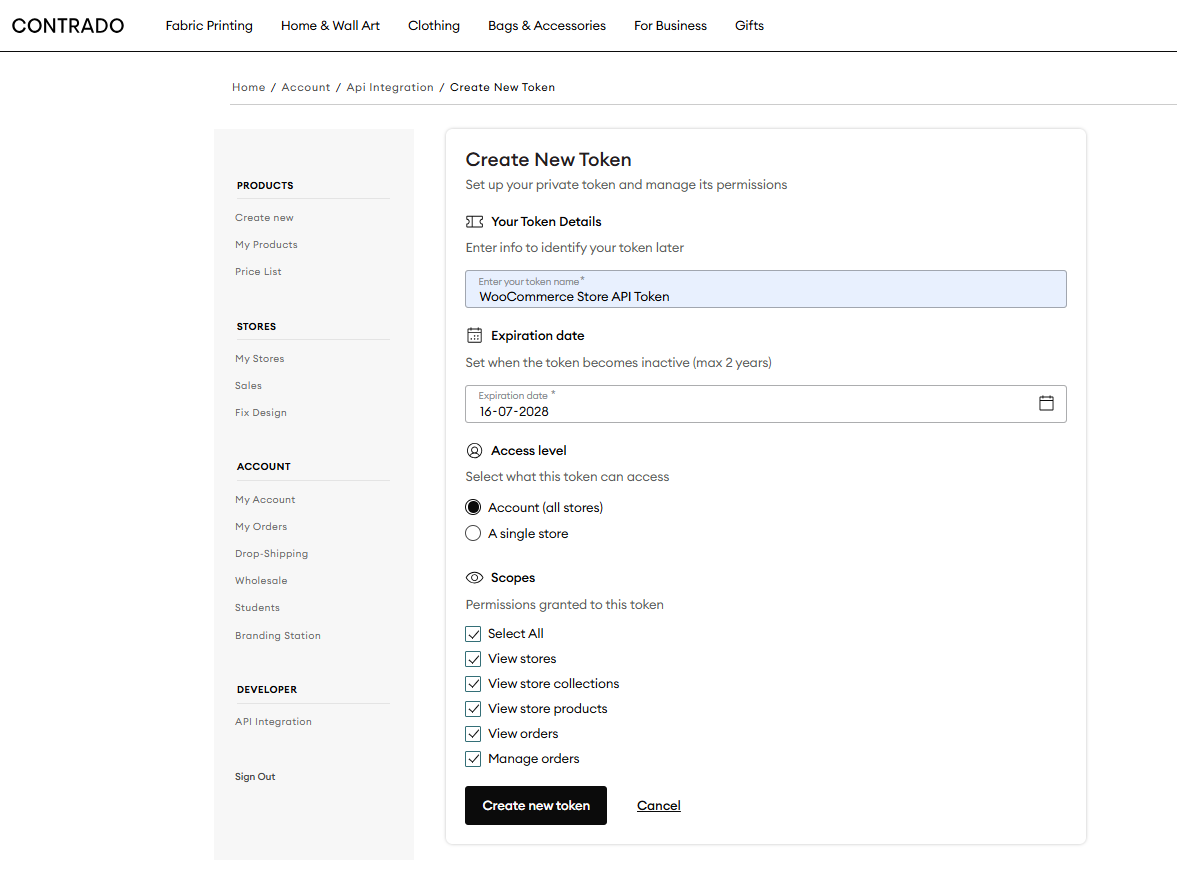
8. While creating the new API token, make sure to select all permissions in Scopes.
9. Click Create Token, then copy the token and save it somewhere safe. You'll need it in Step 4.
Some Contrado features don't work with older versions of WooCommerce. Our app has been tested up to WooCommerce 10.7.0 and WordPress 7.0. Newer versions have not been tested yet.
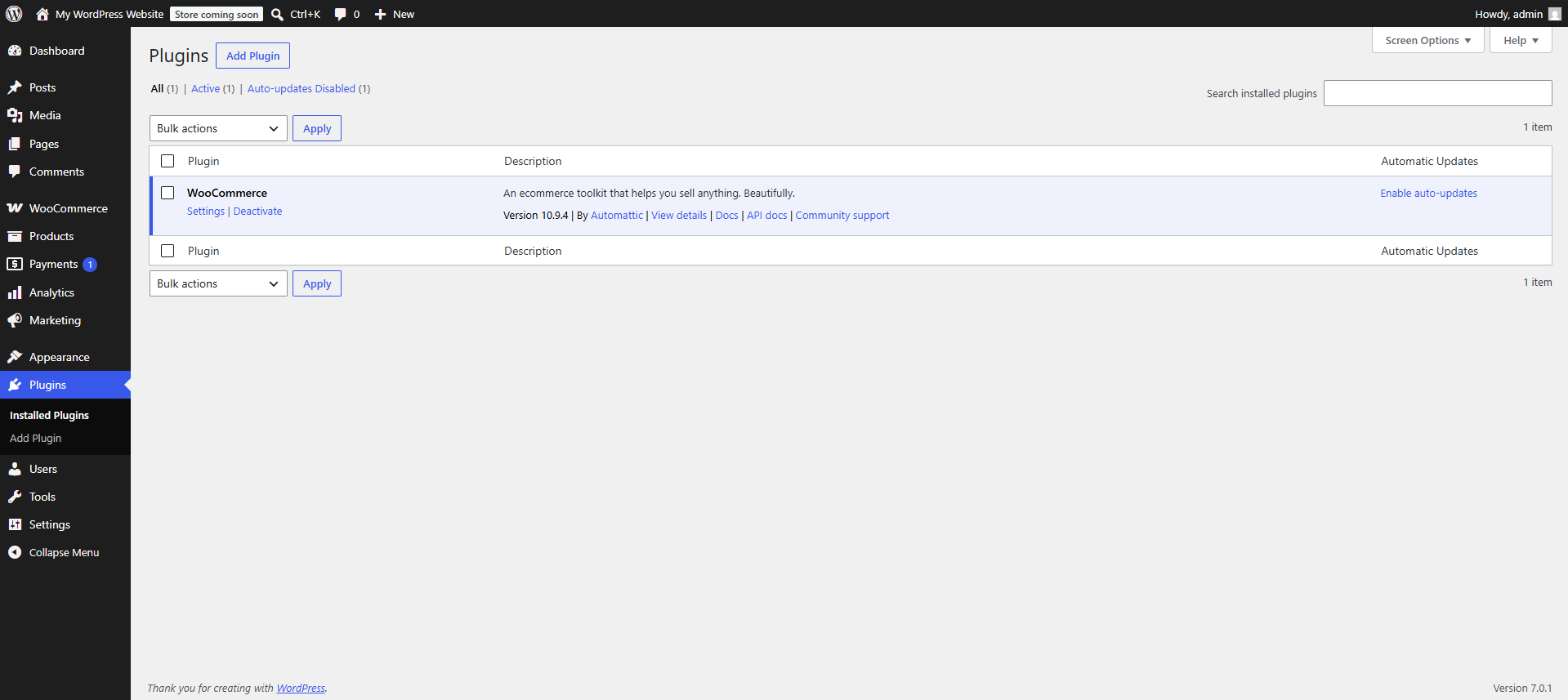
Note: Please upgrade WooCommerce and WordPress to the latest supported versions listed above before proceeding.
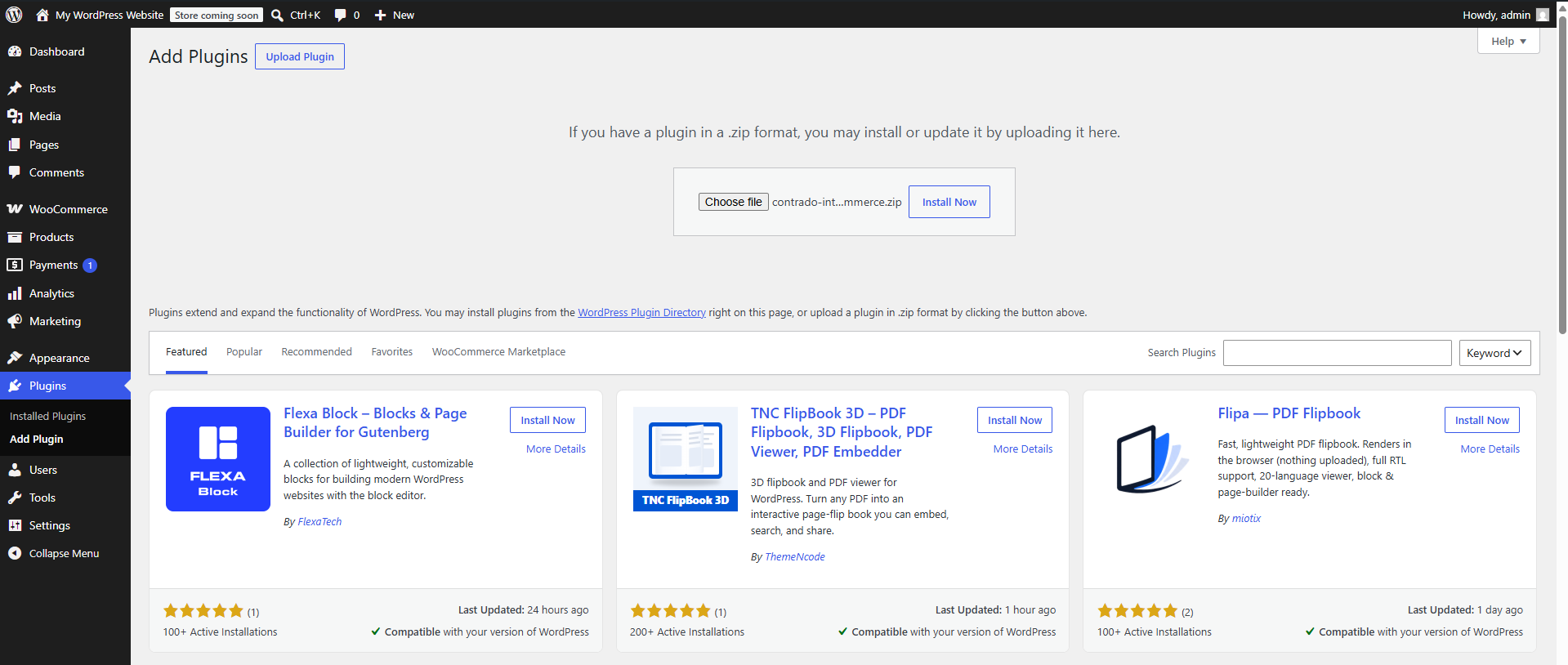
1. Log in to your WordPress dashboard and go to Plugins > Add Plugin, then click Upload Plugin.
2. Upload the provided ZIP file, click Install Now, then activate the plugin.
3. After installing the Contrado plugin, you'll be redirected to the Contrado menu in your WordPress dashboard.
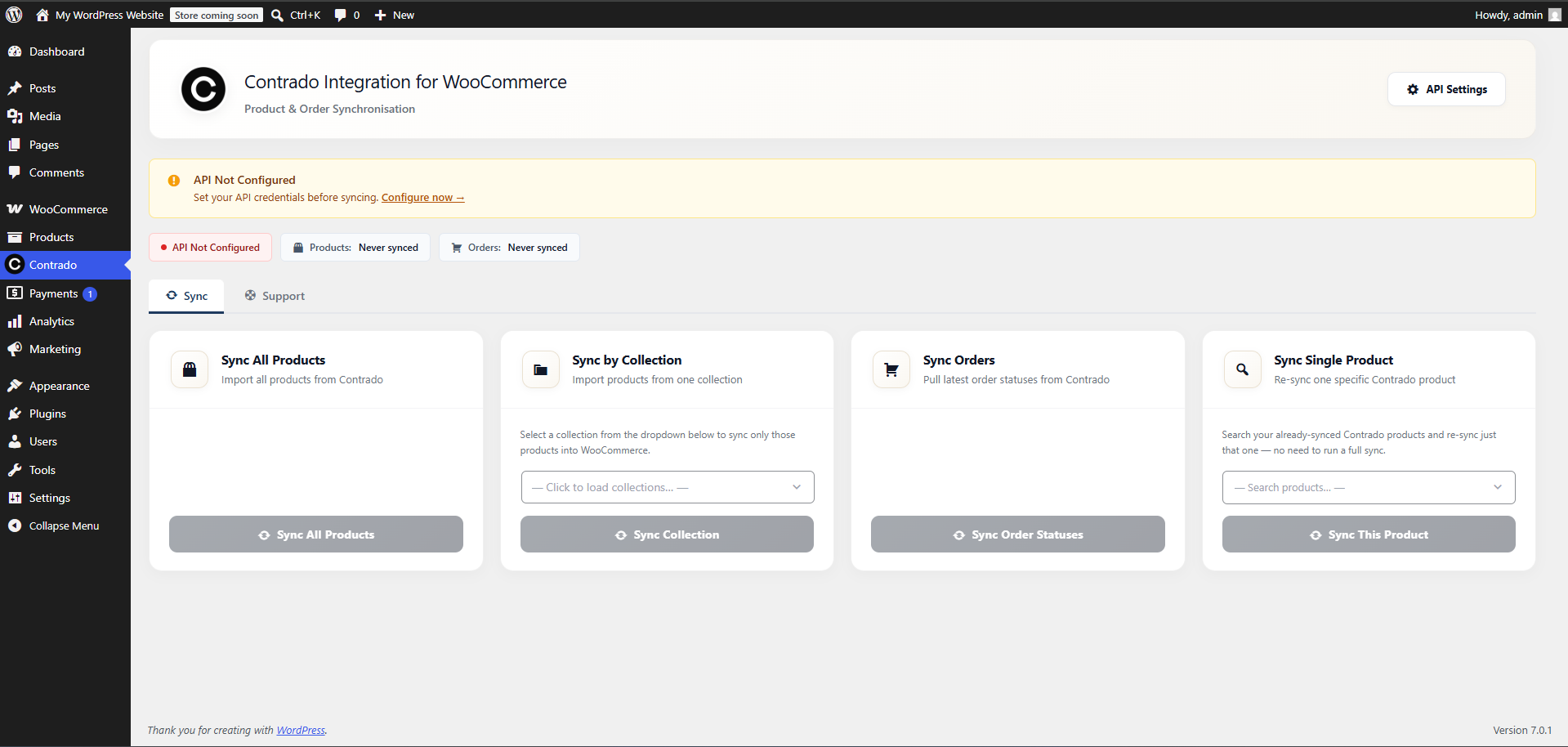
4. Click API Settings to add your API key.
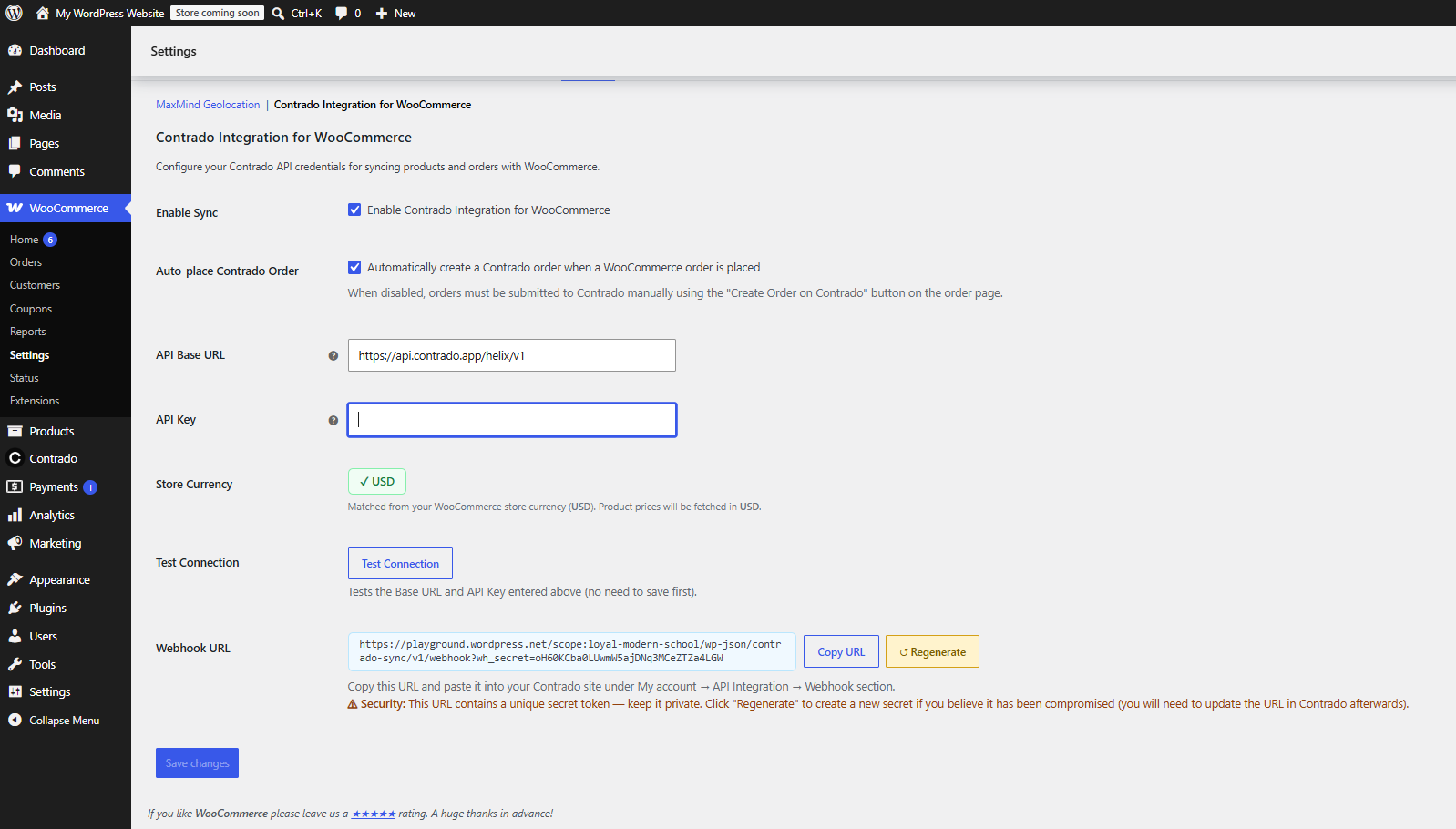
5. Paste your API key from Step 1 into the API Key field.
6. Click Test Connection, then Save Changes.
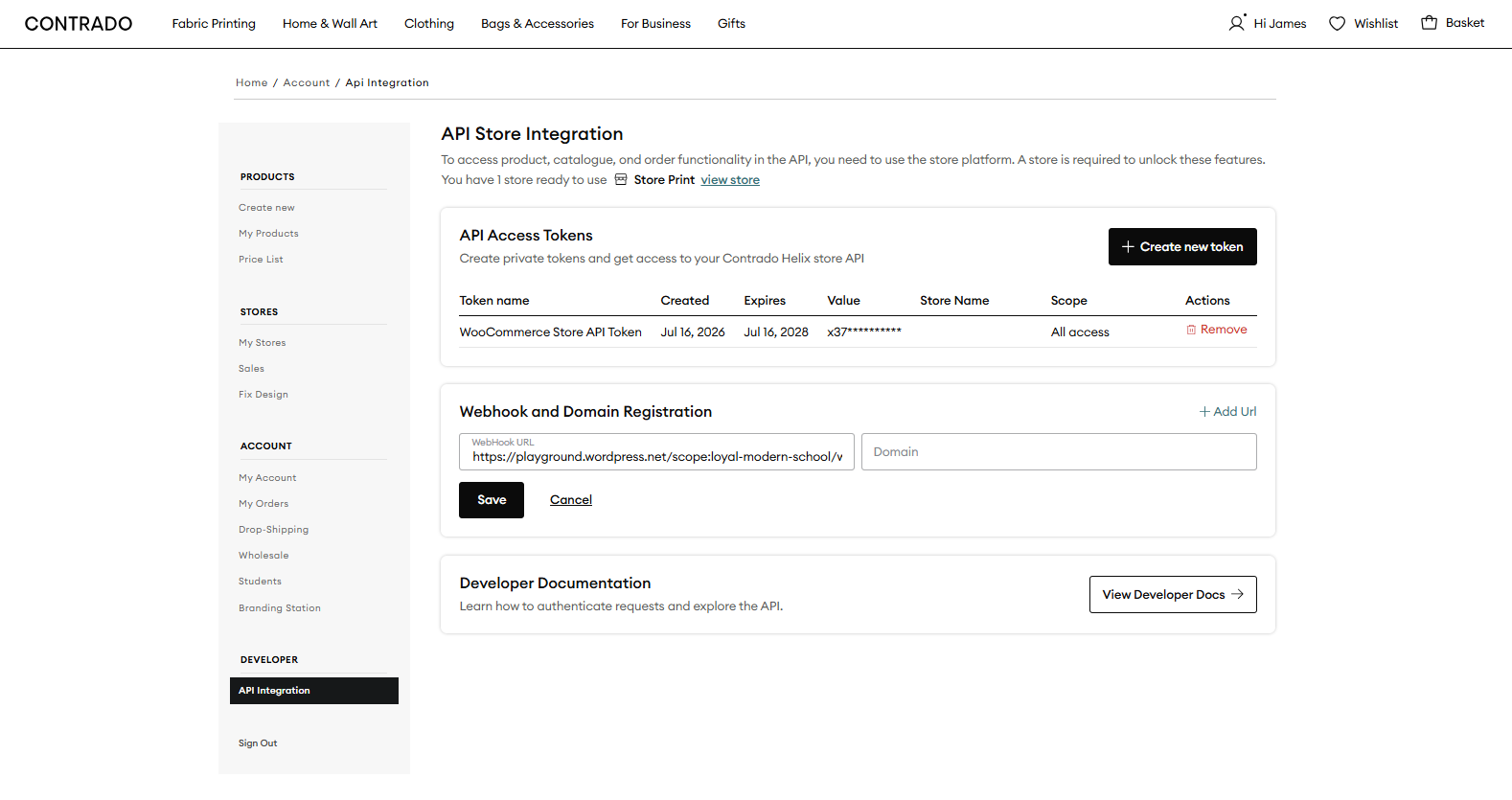
7. Click Copy URL to copy the webhook URL, then paste it into My Account > API Integration > Webhook and Domain Registration in your Contrado account.
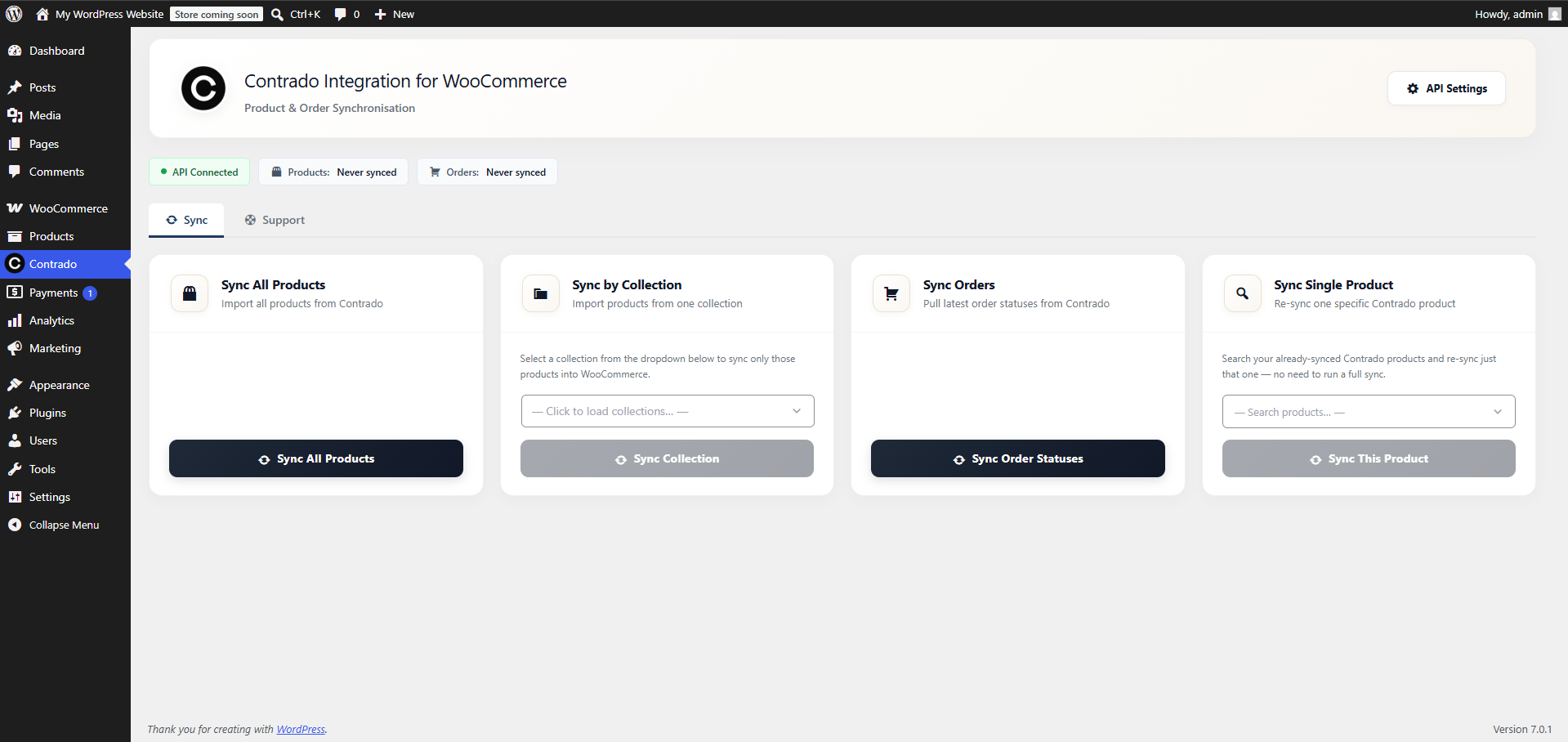
8. Return to the Contrado menu and click Sync All Products, your products will sync immediately and stay up to date automatically from here on.
If you run into any issues during setup, please Contact our support team.
